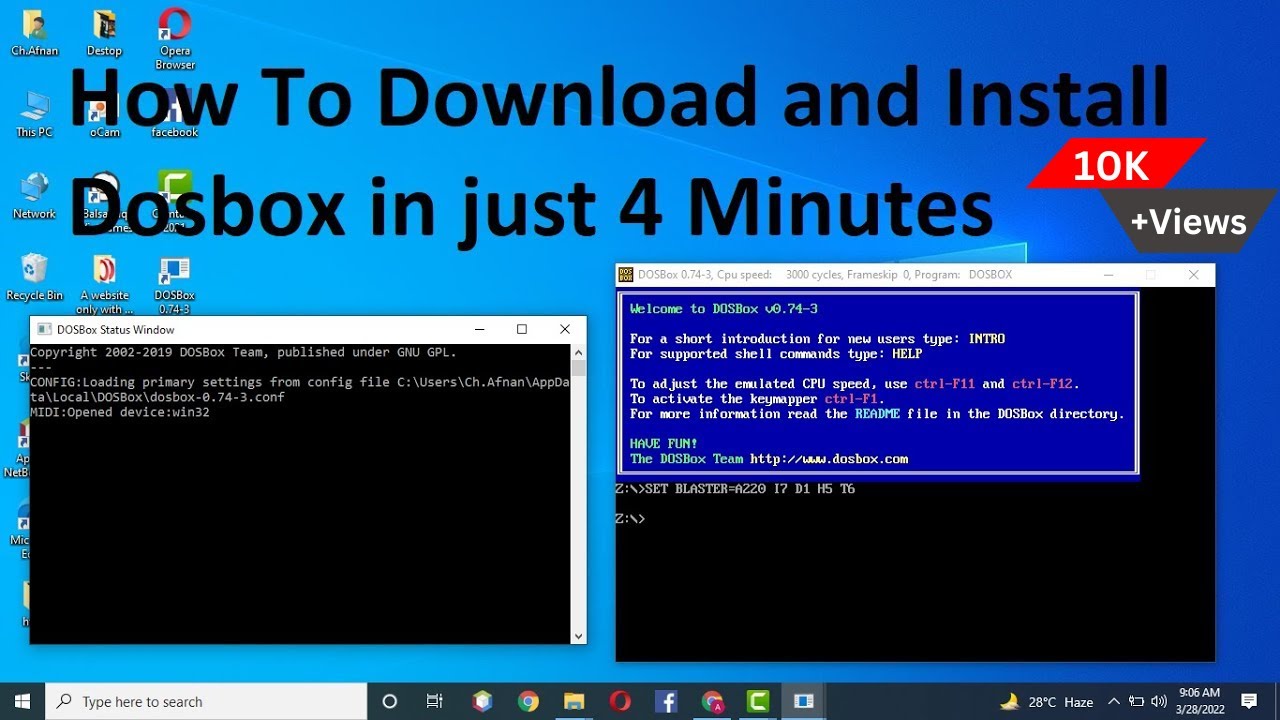
How to Download and Install DOSBox on Windows (7, 8, 10 & 11) in Just 4 Minutes
DOSBox is a free and open-source DOS emulator that allows you to run classic DOS games and legacy DOS applications on modern computers. If you want to play old DOS games or use software that was designed for MS-DOS, DOSBox provides an easy way to create a DOS-like environment on Windows.
In this step-by-step tutorial, you'll learn how to download and install DOSBox on Windows 7, Windows 8, Windows 10, and Windows 11. We'll also cover the basic setup process, mounting a Windows folder as a DOS drive, navigating directories, and running DOS programs.
What Is DOSBox?
DOSBox is an emulator that recreates an MS-DOS environment on modern operating systems.
Many older games and applications were designed to run directly in DOS and may not work correctly on newer versions of Windows. DOSBox solves this problem by providing a virtual DOS environment where these applications can run.
DOSBox is particularly useful for:
-
Running classic DOS games
-
Using old DOS-based applications
-
Accessing legacy software
-
Learning basic DOS commands
-
Playing retro games on modern computers
Why Use DOSBox?
Modern versions of Windows do not provide the same DOS environment that older applications expected. As a result, some classic programs and games may fail to start normally.
DOSBox provides a simple solution without requiring an old computer or an older version of Windows.
Some of its main advantages include:
-
Free and open-source
-
Easy to install
-
Supports classic DOS applications
-
Works with modern Windows versions
-
Supports DOS games
-
Provides a simple command-line environment
-
Allows folders on your computer to be mounted as virtual DOS drives
Windows Versions Supported
This tutorial covers DOSBox installation on:
-
Windows 7
-
Windows 8
-
Windows 10
-
Windows 11
The installation process is generally similar across these versions of Windows.
Step 1: Download DOSBox
The first step is to download DOSBox.
You can visit the official DOSBox website to learn more about the software and access its download options.
Official DOSBox Website:
https://www.dosbox.com/
You can also access the DOSBox download page:
Download DOSBox:
https://www.dosbox.com/download.php?main=1
Download the appropriate Windows installer and save it to your computer.
Once the download is complete, open your Downloads folder and locate the DOSBox installer.
Step 2: Install DOSBox on Windows
After downloading the installer, you can begin the installation.
1. Open the installer
Double-click the DOSBox setup file that you downloaded.
2. Start the installation
The DOSBox setup window will appear.
Click Next to continue.
3. Accept the license agreement
Read the license information and accept the agreement if prompted.
Then click Next.
4. Choose the installation location
DOSBox will provide a default installation folder.
You can keep the default location unless you have a specific reason to change it.
Click Next.
5. Install DOSBox
Click Install to begin installing DOSBox.
Windows will copy the required files to your computer.
6. Complete the installation
Wait for the installation to finish.
Once the process is complete, click Finish.
DOSBox is now installed on your Windows computer.
Step 3: Open DOSBox
After installation, open DOSBox from the Windows Start Menu or desktop shortcut.
When DOSBox starts, you will see a command-line window.
It will look similar to an old DOS environment.
This is where you can enter DOS commands and interact with your DOS programs.
However, before running your games or applications, you will normally need to mount a folder.
Step 4: Create a Folder for DOS Programs
It is a good idea to create a dedicated folder for your DOS games and applications.
For example, create a folder on your C: drive:
C:\DOSPrograms
You can use another folder name if you prefer.
For example:
C:\DOS
or:
C:\Games
For this tutorial, we'll use:
C:\DOSPrograms
You can place your DOS games or applications inside this folder.
Step 5: Mount the Folder in DOSBox
DOSBox uses the mount command to make a Windows folder available as a virtual DOS drive.
Open DOSBox and enter:
mount c c:\DOSPrograms
Then press Enter.
If the command is successful, DOSBox will mount the Windows folder as drive C:.
Now type:
c:
and press Enter.
You are now working inside the virtual C: drive.
You can check the files and folders by entering:
dir
This will display the contents of the mounted folder.
Step 6: Navigate to Your DOS Program
Suppose you have a DOS game or application inside a folder called GAME.
You can enter:
cd game
Then press Enter.
To see the files inside that folder, type:
dir
Look for the program's executable file.
Common DOS executable extensions include:
.exe
.com
.bat
Step 7: Run a DOS Program
Once you find the executable file, type its name.
For example:
game.exe
Then press Enter.
DOSBox should launch the program.
If the executable has a different name, replace game.exe with the actual filename.
For example:
program.exe
Useful DOSBox Commands
Once you start using DOSBox, you'll frequently use a few basic commands.
DIR
The dir command displays files and folders in the current directory.
dir
Use it whenever you want to see what files are available.
CD
The cd command allows you to change directories.
For example:
cd game
To move into a folder.
You can also move back to the previous directory with:
cd ..
Change Drive
To switch to the mounted C: drive:
c:
Mount a Folder
To mount your Windows folder:
mount c c:\DOSPrograms
Exit DOSBox
To close DOSBox from the command line:
exit
Example: Running a DOS Game
Let's look at a simple example.
Suppose your game is stored here:
C:\DOSPrograms\GAME
First start DOSBox.
Then mount your folder:
mount c c:\DOSPrograms
Switch to drive C:
c:
Open the game directory:
cd game
View the files:
dir
If the game's executable is called game.exe, run:
game.exe
The game should now start inside DOSBox.
How to Use Full-Screen Mode
DOSBox can also run in full-screen mode.
Use:
Alt + Enter
This keyboard shortcut toggles between windowed mode and full-screen mode.
Press Alt + Enter again to return to windowed mode.
Full-screen mode can be useful when playing classic DOS games.
Common DOSBox Problems
DOS Program Is Not Starting
If your program does not start, first check whether you mounted the correct folder.
For example:
mount c c:\DOSPrograms
Then:
c:
Use:
dir
to confirm that the program files are available.
Also make sure you are inside the correct directory.
For example:
cd game
Then use:
dir
to locate the executable.
"Illegal Command" or File Not Found
If DOSBox cannot find your program, check the spelling of the filename.
For example, if the actual file is:
GAME.EXE
you can run:
GAME.EXE
You can also use the dir command to see the exact filenames.
DOSBox Performance Issues
Some older DOS applications and games may require adjustments to DOSBox's CPU cycle settings.
For example:
cycles=max
However, the appropriate setting depends on the particular application or game.
If a game runs too quickly or too slowly, you may need to adjust the DOSBox configuration.
Tips for Organizing DOS Games
If you plan to use DOSBox regularly, keeping your games organized can make things much easier.
For example:
C:\DOSPrograms
    ├── GAME1
    ├── GAME2
    ├── GAME3
    └── APPLICATIONS
Each game or application can have its own folder.
This makes it easier to navigate and launch programs through DOSBox.
Related Resources
🌐 Official DOSBox Website
📥 DOSBox Download
https://www.dosbox.com/download.php?main=1
Frequently Asked Questions
Is DOSBox free?
Yes. DOSBox is free and open-source software.
Can I install DOSBox on Windows 10?
Yes. DOSBox can be installed and used on Windows 10.
Can I use DOSBox on Windows 11?
Yes. DOSBox can be used to run many classic DOS applications and games on Windows 11.
Can DOSBox run old games?
Yes. DOSBox was designed to provide a DOS environment for running many classic DOS games and applications.
Do I need an old computer to run DOS games?
No. DOSBox allows many DOS-based games and applications to run on modern computers without requiring an original DOS computer.
How do I mount a folder in DOSBox?
Use the mount command. For example:
mount c c:\DOSPrograms
Then switch to the drive:
c:
How do I exit DOSBox?
Simply type:
exit
and press Enter.
Conclusion
Installing DOSBox on Windows is a straightforward process. Once DOSBox is installed, you can create a dedicated folder for your DOS programs, mount that folder as a virtual drive, navigate through the directories, and launch your classic applications and games.
Whether you're interested in retro gaming, legacy software, or simply want to experience classic DOS applications, DOSBox provides a convenient way to use them on modern Windows computers.
If you found this tutorial helpful, share it with anyone who needs help installing DOSBox.