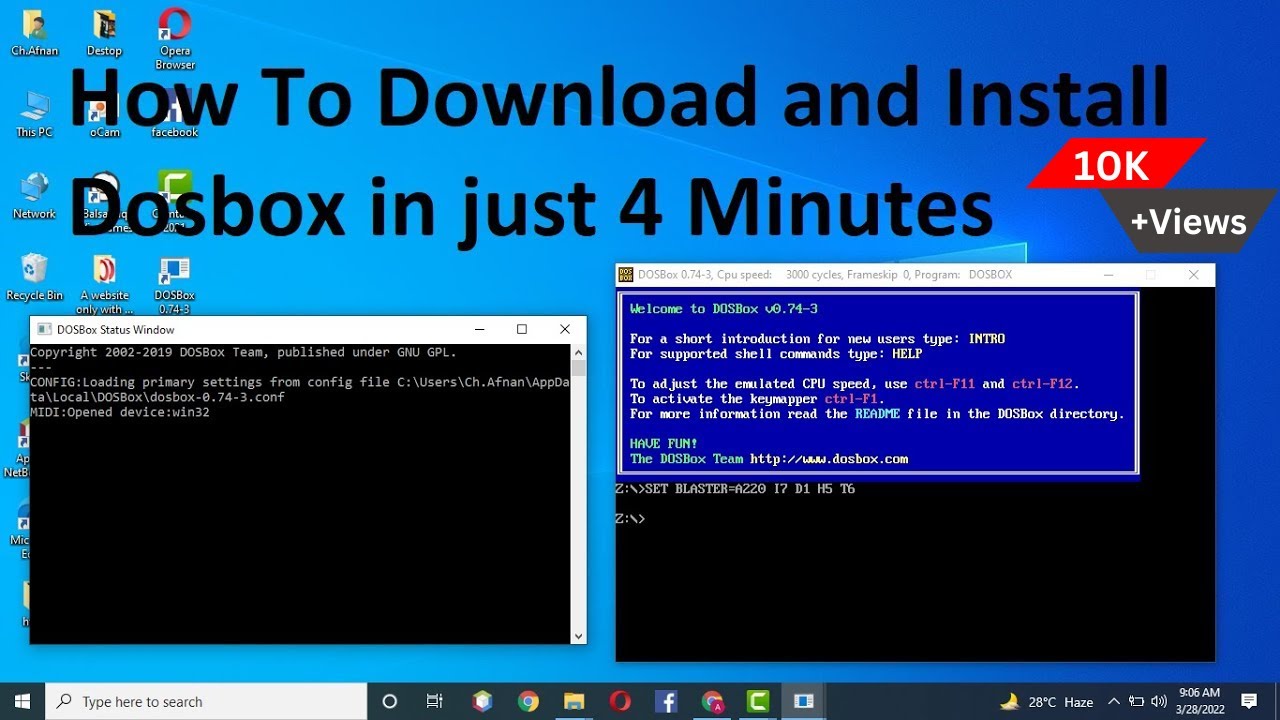
How to Download and Install DOSBox on Windows (7, 8, 10 & 11) in Just 4 Minutes
DOSBox is a free and open-source DOS emulator that allows you to run classic DOS games and old software on modern Windows computers. If you want to play retro games or use legacy applications, DOSBox is one of the easiest solutions available.
In this tutorial, you'll learn how to download, install, and configure DOSBox on Windows in just a few minutes.
What is DOSBox?
DOSBox is an emulator that recreates a DOS environment on modern operating systems. It enables users to run old DOS-based programs that are no longer compatible with current versions of Windows.
Features of DOSBox
-
Free and open-source
-
Supports classic DOS games
-
Runs old DOS applications
-
Easy installation process
-
Compatible with Windows, Linux, and macOS
-
Simple command-line interface
Step 1: Download DOSBox
Visit the official DOSBox website or SourceForge download page and download the latest Windows version.
After downloading, locate the installer file in your Downloads folder.
Step 2: Install DOSBox
-
Double-click the downloaded installer.
-
Click Next to begin installation.
-
Accept the license agreement.
-
Choose the installation location.
-
Click Install.
-
Wait for the installation to complete.
-
Click Finish.
DOSBox is now installed on your computer.
Step 3: Launch DOSBox
Open DOSBox from the Start Menu or desktop shortcut.
A command-line window will appear, simulating a DOS environment.
Step 4: Mount a Folder
Before running programs, you need to mount a folder as a virtual DOS drive.
For example, create a folder:
C:\DOSPrograms
Inside DOSBox, type:
mount c c:\DOSPrograms
Press Enter.
Next, switch to the mounted drive:
c:
Press Enter.
You can now access files stored in that folder.
Running a DOS Program
Navigate to the program directory:
cd gamefolder
Run the executable file:
game.exe
Replace "game.exe" with the actual file name.
Useful DOSBox Commands
Mount a Drive
mount c c:\DOSPrograms
Change Drive
c:
List Files
dir
Change Directory
cd foldername
Exit DOSBox
exit
Common Issues and Fixes
DOS Program Won't Start
-
Verify that the folder is mounted correctly.
-
Check that the executable file exists.
-
Use the DIR command to view available files.
Slow Performance
Adjust CPU cycles in DOSBox settings or use:
cycles=max
Full Screen Mode
Press:
Alt + Enter
to toggle fullscreen mode.
Why Use DOSBox?
DOSBox remains one of the best ways to enjoy classic DOS games and applications on modern computers. Its simple setup process and broad compatibility make it a popular choice among retro gaming enthusiasts and IT professionals.
Conclusion
Installing DOSBox on Windows is quick and straightforward. After downloading and installing the software, simply mount a folder and start running your favorite DOS applications and games.
Whether you're revisiting classic games or accessing old software, DOSBox provides a reliable DOS environment on modern Windows systems.